 XEasyStudio

Live iPhone logs
DemoFollow your app's logs from the iPhone as they happen, and filter them.
An iOS workspace · powered by xcross
One interface for setup, signing and device tools. Explore supported iOS workflows from Windows and Linux, and check your setup before you start.
Checking installer availability…
Illustration: XEasyStudio builds a demo Flutter app on a Windows PC, signs it with an App Store Connect team key, and installs it on an iPhone 18 Pro Max connected by USB, where the app opens.
Illustrative replay with a demo project. Not a live build.
A closer look
A look at the project and setup status from the Overview screen. Get to know the workspace before preparing your first project.
Get to know the setup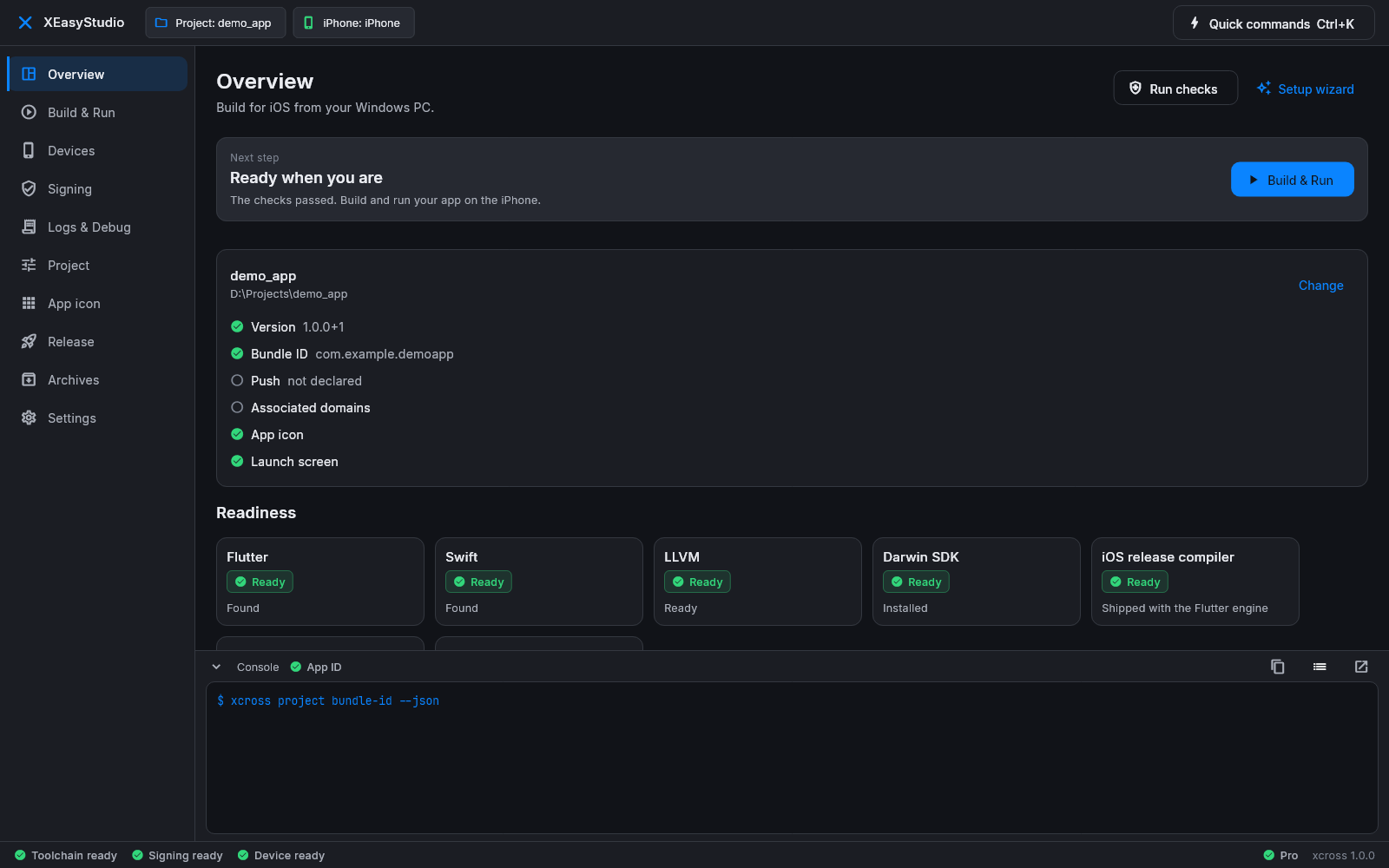
Built around your workflow
Writing the code is only part of the journey. Studio gives the setup, signing and device steps a shared home.
Keep working with your Flutter project on your own computer.
See requirements and diagnostics together, instead of piecing together terminal commands.
Prepare for compatible physical iPhones, with the requirements in view from the start.
Workflow preview
Pick a step and find your way around the interface. This is an illustrative preview, not a live session.
Choose a step to explore01 / 04Next section
The details, taken care of
Project and device tools around one workspace. These are illustrative previews; actual compatibility depends on the release and engine.
Compare plan accessFollow your app's logs from the iPhone as they happen, and filter them.
Plug in your iPhone and see it here, ready to install apps.
Open a crash report from the iPhone and read what went wrong.
Choose one image for your app icon and set your launch screen.
Turn a permission on and write the reason iPhone users will see.
Fix, change or re-check each requirement from one screen.
Under the interface
Two layers, with different roles. xcross handles the command-line tooling. XEasyStudio brings the surrounding workflow into a desktop interface.
Explore the docsOpen source under AGPL-3.0. Command-line tooling with its own releases and compatibility requirements.
A separate desktop application for project setup, signing, device tools and diagnostics.
The engine has its own release lifecycle. A Studio download does not mean every engine workflow has been validated.
Check your setup
Windows and Linux are the product direction. The installer and integrated engine determine what you can use today.
Engine support and Studio support are different. Real-device debugging, TestFlight and App Store submission still require end-to-end validation.
Choose a category to explore01 / 03Next section
Your first session
Use this personal checklist before you install. It does not scan your computer or confirm compatibility.
Studio needs an internet connection for email sign-in and licence checks. Your projects remain normal files on your computer.
Still to prepare: 5
Find your fit
Your Pro trial starts when you first sign in. Free tools stay available after the trial.
No payment card requiredFor trying it on your own iPhone.
For shipping apps.
Prices are coming soon.
Plans describe tool access. Complete workflows depend on the engine version and compatibility validation.
Good to know
A few details to help you decide on your next step.
Browse all guidesStart with a compatible Windows or Linux computer and check installer availability. Device workflows need a physical iPhone and USB cable, your own Xcode archive, and a paid Apple Developer membership and team key for signing.
Device workflows target compatible physical iPhones on iOS 17 or later. Device, engine and Xcode compatibility require real-device validation; this is not a guarantee for every device.
No. You run on a real iPhone.
We don't promise that. The stated requirement is a paid Apple Developer Program membership.
You enter your email and we send you a 6-digit code, which you type in the app. No password. The code expires after 10 minutes.
Yes. XEasyStudio needs an internet connection to open and to keep working: it checks your sign-in and licence when it starts and again every 15 minutes while it runs. If the connection drops, you have 30 minutes to reconnect before the app locks; jobs already running finish, and nothing is lost because your projects are normal files on your PC. The xcross command-line engine is not part of this check.
Choose a category to explore01 / 03Next section
Feedback
Report a problem, suggest a feature or leave a note for the developer. Every ticket is read.
Your next step
Check the current release for your computer, or prepare your setup with the getting-started guide.